> For the complete documentation index, see [llms.txt](https://docs.simplifyqa.ai/llms.txt). Markdown versions of documentation pages are available by appending `.md` to page URLs; this page is available as [Markdown](https://docs.simplifyqa.ai/dashboard/test-management-dashboard-guide.md).
# Test Management Dashboard Guide
The **Test Management Dashboard** provides complete visibility into **test case creation, ownership, coverage, execution readiness, and gaps** across projects, sprints, modules, and platforms.
This dashboard helps teams:
* Track test case creation trends
* Measure test coverage at module, platform, and user story levels
* Identify unexecuted or unused test cases
* Analyze tester contribution and execution readiness
* Improve overall test planning and test asset utilization
It is primarily used by **QA Leads, Test Managers, Product Owners, and Delivery Managers** during test planning, sprint reviews, and quality audits.
### How to Use Dashboard Graphs (Common Instructions for All Widgets)
Every widget on the dashboard includes a standard **three-dot (⋮) menu** in the top-right corner. These options behave the same across all graphs.
* **Force Refresh:** Reloads the widget with the latest data. Always use this before reviews or release decisions.
* **Enter Fullscreen:** Expands the graph for better visibility during meetings or presentations.
* **Edit Chart:** Allows authorized users to modify filters, grouping, or metrics.
* **Cross-Filtering Scoping:** Selecting data in one widget automatically filters related widgets for deeper analysis.
* **View Query:** Displays the underlying logic or query used to generate the graph (mainly for admins/audits).
* **View as Table:** Converts the graph into a table to view exact counts and records.
* **Drill to Detail:** Opens individual defect records contributing to the graph.
* **Share:** Generates shareable links or embedded views.
* **Download:** Exports the graph or data as Image, PDF, or CSV/Excel.
***
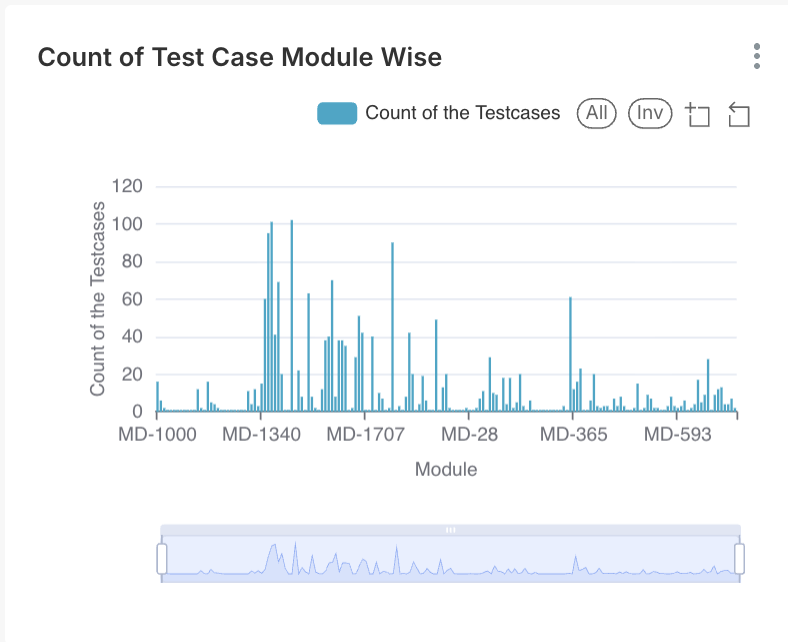
### Count of Test Case – Module Wise
#### Description
Displays the **number of test cases created per module**.
#### Axis Details
* **X-Axis:** Module Name
* **Y-Axis:** Count of Test Cases
#### Interpretation
* Modules with higher test case counts usually represent **complex or high-risk areas**.
* Modules with very few test cases may indicate **insufficient coverage**.
#### Business & Operational Value
* Helps ensure balanced test coverage
* Identifies modules requiring additional test design
* Supports risk-based testing strategies
***
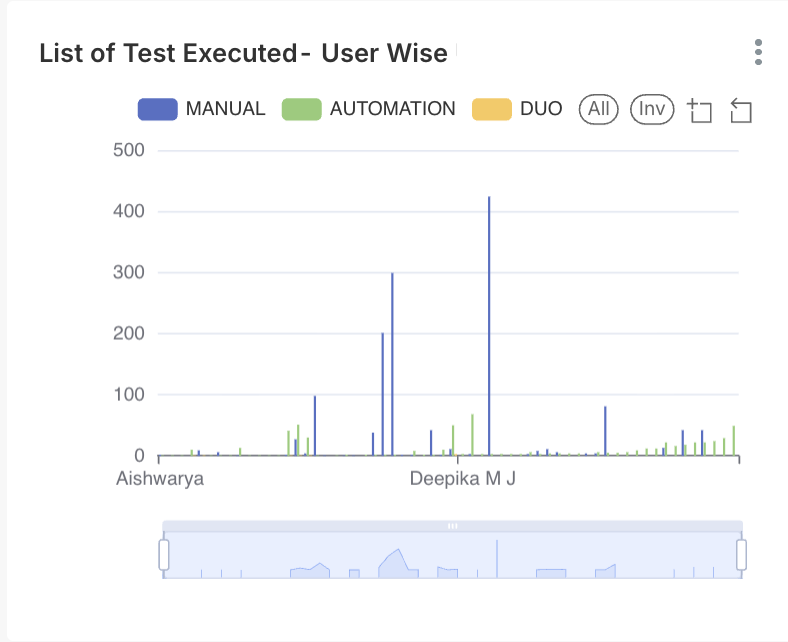
### List of Test Executed – User Wise
#### Description
Shows **test execution contribution by each user**, categorized by execution type.
#### Axis Details
* **X-Axis:** User Name
* **Y-Axis:** Count of Test Executions
#### Execution Type Classification
* Manual
* Automation
* DDU (if applicable)
#### Interpretation
* Highlights individual tester contribution
* Shows balance between manual and automated testing
#### Business & Operational Value
* Supports workload analysis
* Helps identify automation adoption
* Assists in performance reviews
***
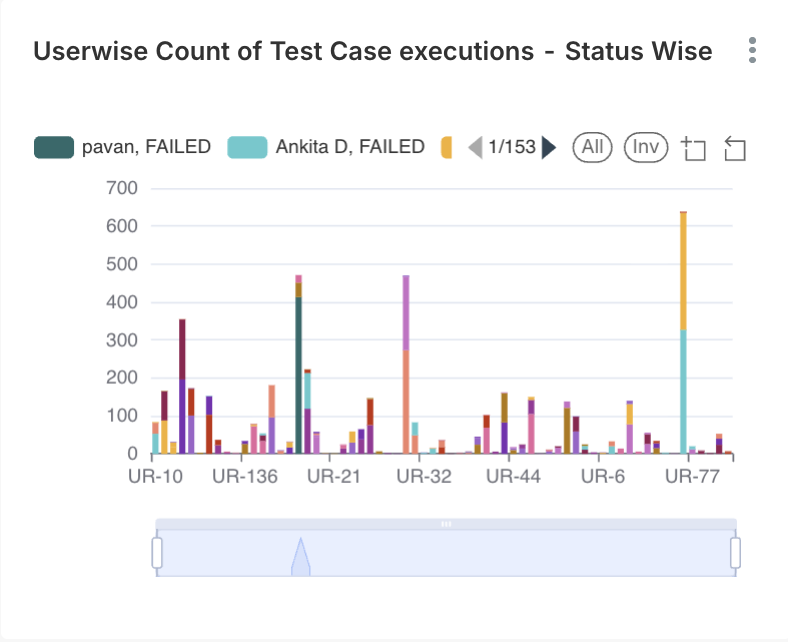
### User-wise Count of Test Case Executions – Status Wise
#### Description
Displays **execution outcomes per user**, grouped by execution status.
#### Axis Details
* **X-Axis:** User Name
* **Y-Axis:** Count of Test Case Executions
#### Status Classification
* Passed
* Failed
#### Interpretation
* High pass count indicates stable execution areas
* High fail count may point to unstable builds or complex scenarios
#### Business & Operational Value
* Identifies execution risk areas
* Supports capacity and ownership analysis
***
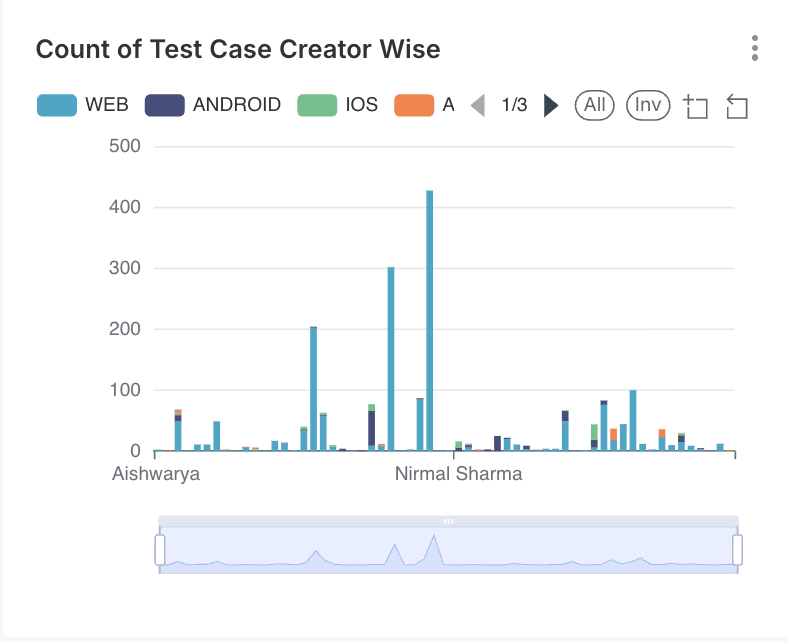
### Count of Test Case Creator – User Wise
#### Description
Shows **test case creation contribution by users**, segmented by platform.
#### Axis Details
* **X-Axis:** User Name
* **Y-Axis:** Count of Test Cases Created
#### Platform Classification
* Web
* Android
* iOS
#### Interpretation
* Highlights users contributing heavily to test design
* Reveals platform-specific expertise
#### Business & Operational Value
* Encourages balanced test creation
* Helps identify skill specialization
***
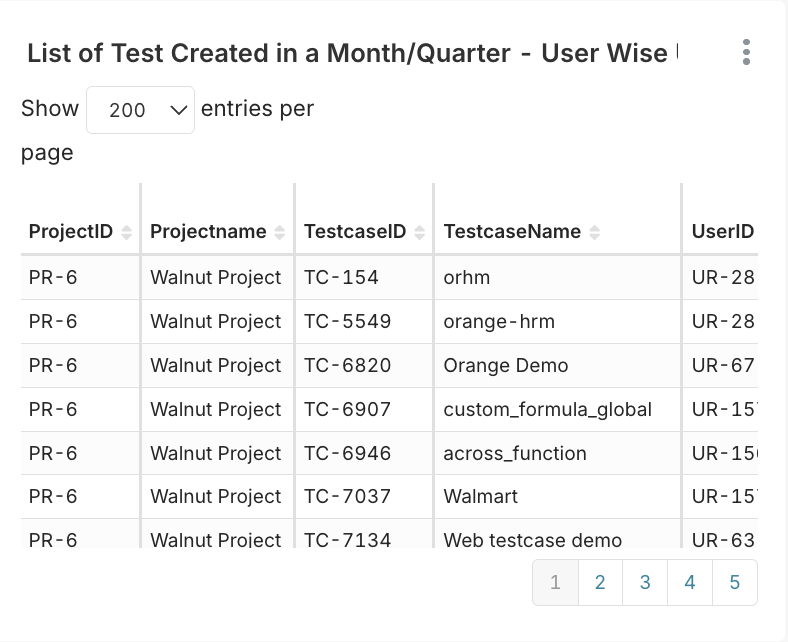
### List of Test Created in Month / Quarter – User Wise
#### Description
Provides a **tabular view of test cases created** in a specific time period by users.
#### Data Fields Explained
* Project ID
* Project Name
* Test Case ID
* Test Case Name
#### Interpretation
Helps track test creation velocity and timeline.
#### Business & Operational Value
* Supports audit and compliance needs
* Measures test design throughput
***
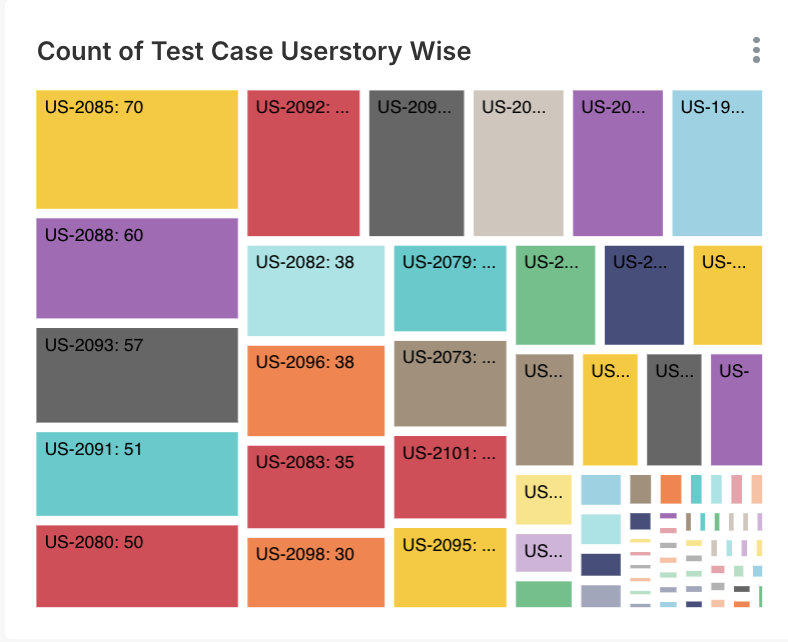
### Count of Test Case – User Story Wise
#### Description
Displays **distribution of test cases mapped to user stories**.
#### Axis Details
* **X-Axis:** User Story ID
* **Y-Axis:** Count of Test Cases
#### Interpretation
* User stories with higher test counts are generally more complex
* Stories with very few tests may be under-tested
#### Business & Operational Value
* Validates requirement-to-test coverage
* Improves quality assurance at story level
***
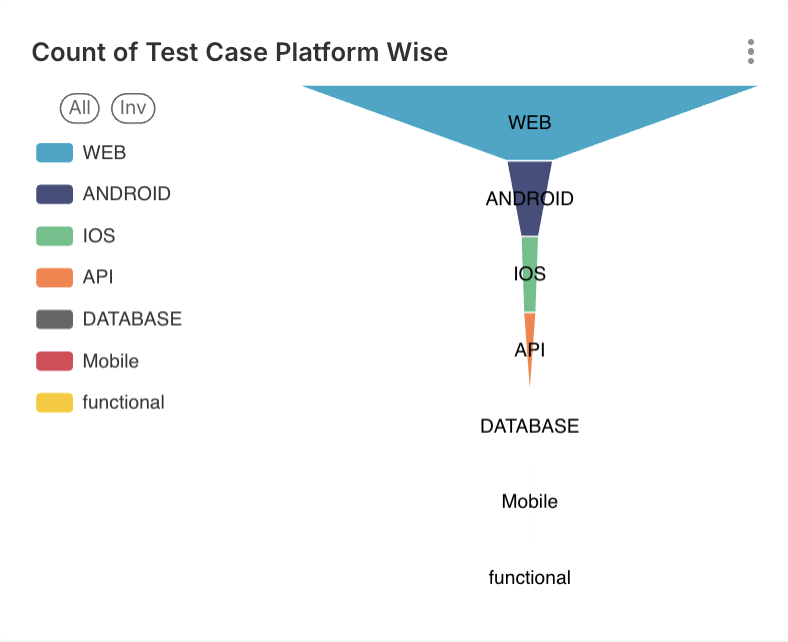
### Count of Test Case – Platform Wise
#### Description
Shows **test case distribution across platforms**.
#### Axis Details
* **X-Axis:** Platform (Web, Android, iOS, API, Database, Mobile, Functional)
* **Y-Axis:** Count of Test Cases
#### Interpretation
* Ensures no platform is under-covered
* Highlights testing focus areas
#### Business & Operational Value
* Supports cross-platform testing strategy
* Helps align testing with product usage patterns
***
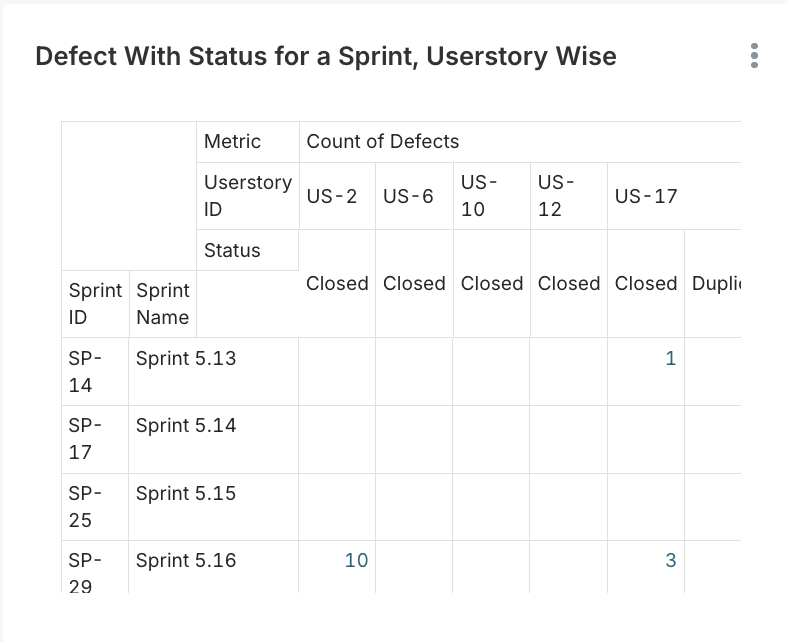
### Defect with Status for a Sprint – User Story Wise
#### Description
Displays **defects linked to user stories**, grouped by defect status for a sprint.
#### Axis Details
* **X-Axis:** User Story ID
* **Y-Axis:** Count of Defects
#### Interpretation
* High defect counts against a story indicate requirement or design gaps
* Closed defects indicate stabilization
#### Business & Operational Value
* Evaluates story quality
* Supports root cause analysis
***
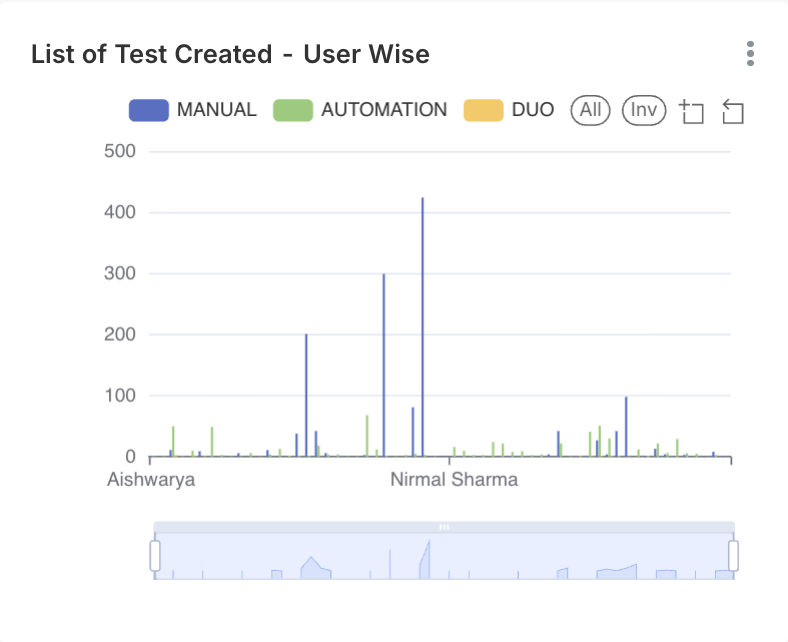
### List of Test Created – User Wise (Up)
#### Description
Shows **test cases created by users**, categorized by creation type.
#### Axis Details
* **X-Axis:** User Name
* **Y-Axis:** Count of Test Cases Created
#### Creation Type
* Manual
* Automation
* DDU
#### Interpretation
Highlights individual contribution to test assets.
#### Business & Operational Value
* Encourages ownership in test design
* Supports automation planning
***
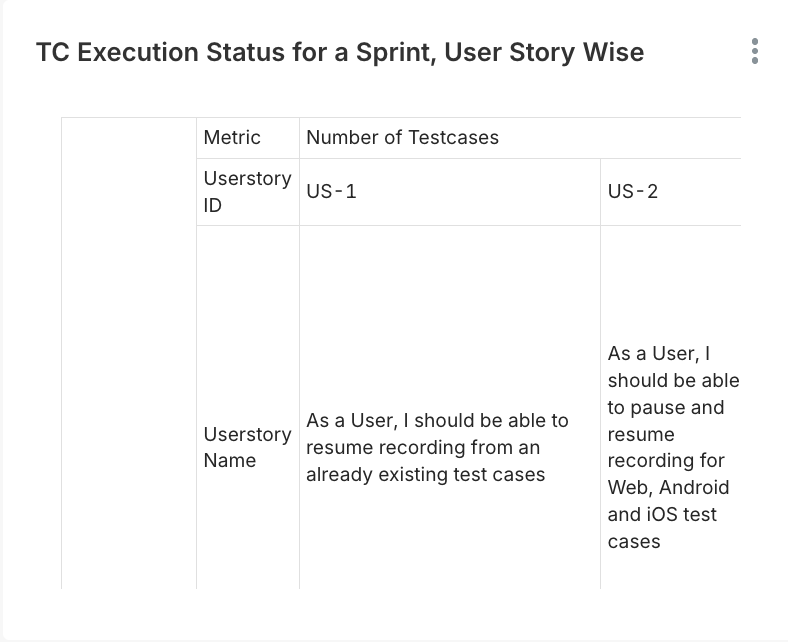
### Test Case Execution Status for a Sprint – User Story Wise
#### Description
Displays **execution status of test cases mapped to user stories** for a sprint.
#### Axis Details
* **X-Axis:** User Story ID
* **Y-Axis:** Number of Test Cases
#### Interpretation
* Shows execution completeness at story level
* Identifies untested or partially tested stories
#### Business & Operational Value
* Improves sprint exit quality
* Ensures no story moves forward untested
***
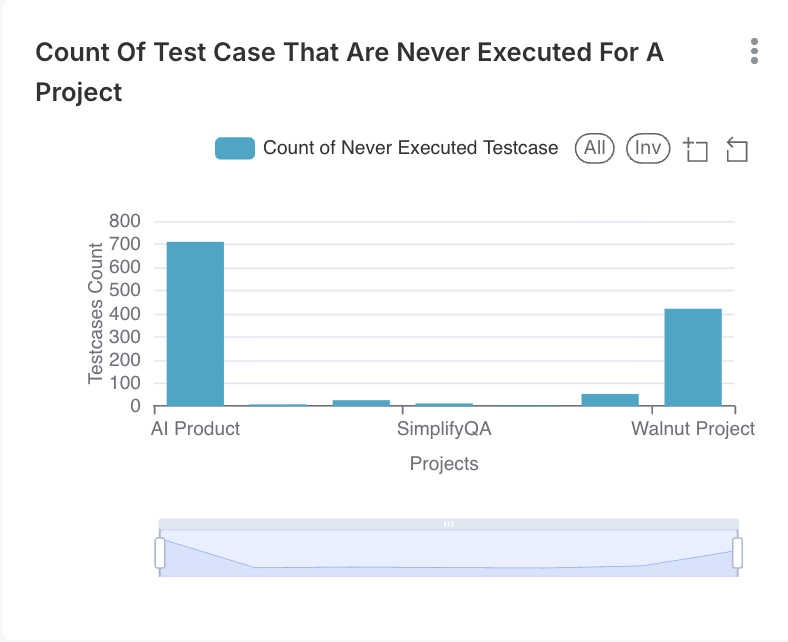
### Count of Test Case That Are Never Executed for a Project
#### Description
Displays **test cases that have never been executed**, grouped by project.
#### Axis Details
* **X-Axis:** Project Name
* **Y-Axis:** Count of Never Executed Test Cases
#### Interpretation
* High values indicate unused or obsolete test cases
* Suggests need for test suite cleanup
#### Business & Operational Value
* Optimizes test repository
* Reduces maintenance overhead
* Improves execution efficiency
***
### Key Takeaways & Best Practices
* Ensure **every user story has adequate test coverage**
* Regularly review **never-executed test cases** to remove redundancy
* Balance test creation across **modules and platforms**
* Encourage automation for stable and repetitive scenarios
* Use test management insights alongside **Execution, Defect, and Release dashboards** for full quality visibility