> For the complete documentation index, see [llms.txt](https://docs.simplifyqa.ai/llms.txt). Markdown versions of documentation pages are available by appending `.md` to page URLs; this page is available as [Markdown](https://docs.simplifyqa.ai/dashboard/test-execution-dashboard-guide.md).
# Test Execution Dashboard Guide
The **Test Execution & Production Monitoring Dashboard** provides end-to-end visibility into **test execution progress, execution quality, defect trends, execution coverage, and environment readiness**.
This dashboard enables stakeholders to:
* Monitor execution health in real time
* Track pass/fail trends across users and projects
* Identify execution gaps and unexecuted test cases
* Correlate execution results with defect trends
* Ensure infrastructure and device readiness
It is primarily used by **QA Leads, Test Managers, Delivery Managers, and Release Teams** during execution cycles and production monitoring.
### How to Use Dashboard Graphs (Common Instructions for All Widgets)
Every widget on the dashboard includes a standard **three-dot (⋮) menu** in the top-right corner. These options behave the same across all graphs.
* **Force Refresh:** Reloads the widget with the latest data. Always use this before reviews or release decisions.
* **Enter Fullscreen:** Expands the graph for better visibility during meetings or presentations.
* **Edit Chart:** Allows authorized users to modify filters, grouping, or metrics.
* **Cross-Filtering Scoping:** Selecting data in one widget automatically filters related widgets for deeper analysis.
* **View Query:** Displays the underlying logic or query used to generate the graph (mainly for admins/audits).
* **View as Table:** Converts the graph into a table to view exact counts and records.
* **Drill to Detail:** Opens individual defect records contributing to the graph.
* **Share:** Generates shareable links or embedded views.
* **Download:** Exports the graph or data as Image, PDF, or CSV/Excel.
***
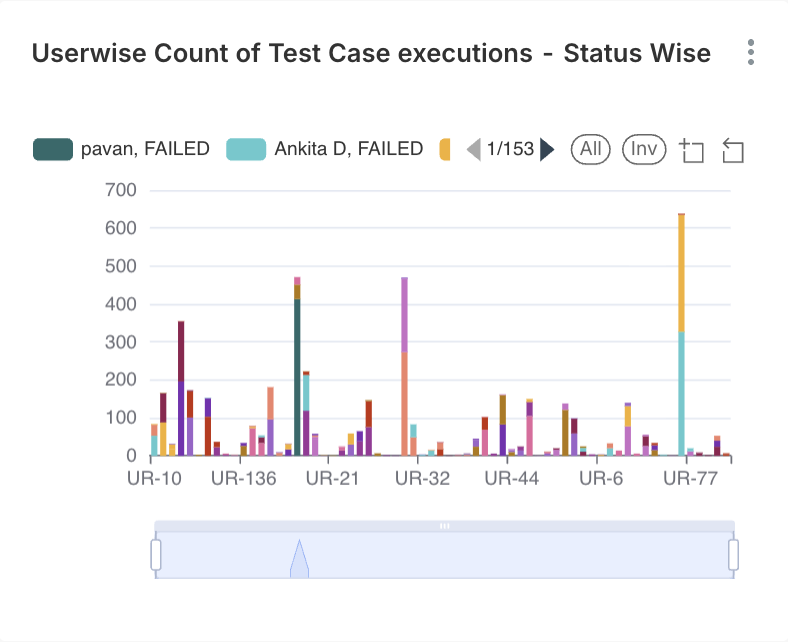
### User-wise Count of Test Case Executions – Status Wise
#### Description
This widget displays the **number of test cases executed by each user**, categorized by execution status.
#### Axis Details
* **X-Axis:** User Name / User ID
* **Y-Axis:** Count of Test Case Executions
#### Status Classification
* Passed
* Failed
* Aborted / Not Executed (if applicable)
#### Interpretation
Each bar represents a user, segmented by execution status. A higher **Passed** count indicates effective execution, while a higher **Failed** count may point to unstable builds or complex test scenarios.
#### Business & Operational Value
* Assesses tester productivity
* Highlights execution ownership
* Helps balance workload
***
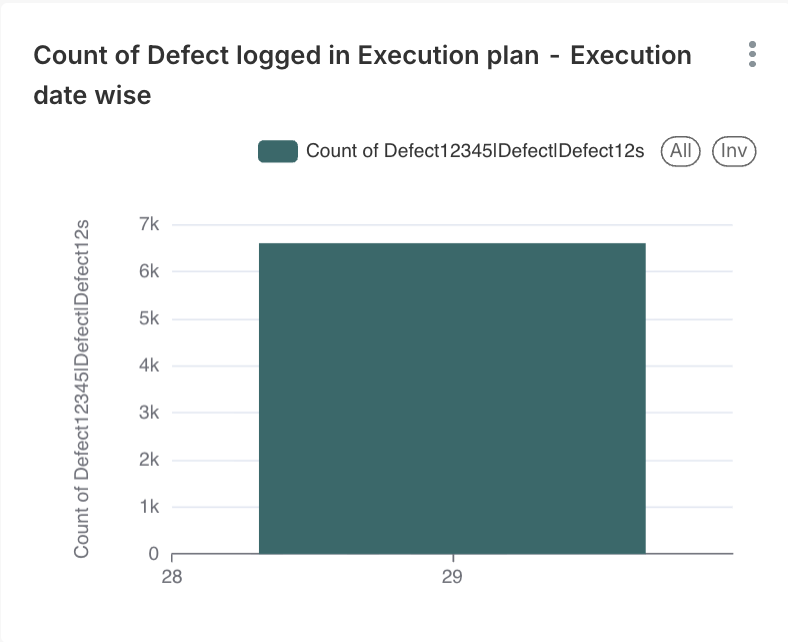
### Count of Defects Logged in Execution Plan – Execution Date Wise
#### Description
Shows the **number of defects logged during test execution**, grouped by execution date.
#### Axis Details
* **X-Axis:** Execution Date
* **Y-Axis:** Count of Defects Logged
#### Interpretation
Spikes indicate unstable builds or high-risk execution windows, while downward trends suggest improved quality.
#### Business & Operational Value
* Correlates failures with defect trends
* Identifies problematic builds early
* Supports release quality assessment
***
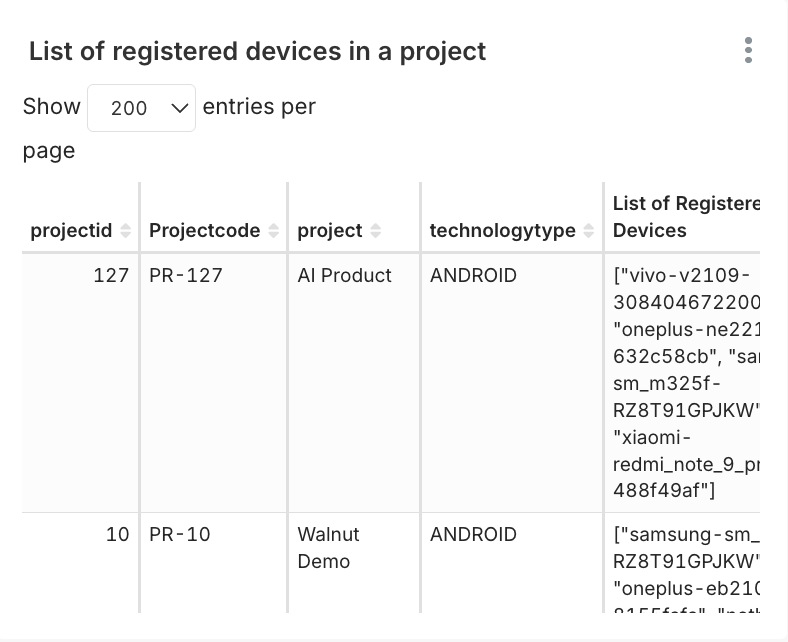
### List of Registered Devices in a Project
#### Description
Displays a **tabular list of devices registered** under each project.
#### Data Fields Explained
* Project ID
* Project Name
* Technology Type (Android, iOS, Web, etc.)
* Device Name / Device Identifier
#### Interpretation
Provides visibility into device availability for execution.
#### Business & Operational Value
* Ensures device coverage
* Prevents execution delays due to missing infrastructure
* Supports cross-platform testing
***
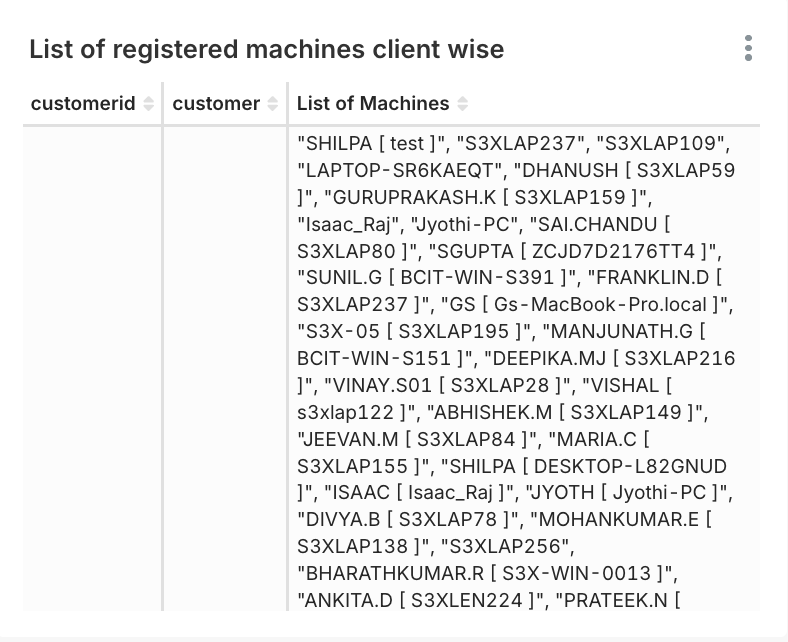
### List of Registered Machines – Client Wise
#### Description
Displays a **client-wise list of machines** available for test execution.
#### Data Fields Explained
* Client Name
* Machine Name
* OS / Platform Details
#### Interpretation
Shows infrastructure readiness across clients.
#### Business & Operational Value
* Supports distributed execution
* Ensures environment readiness
* Helps with infrastructure planning
***
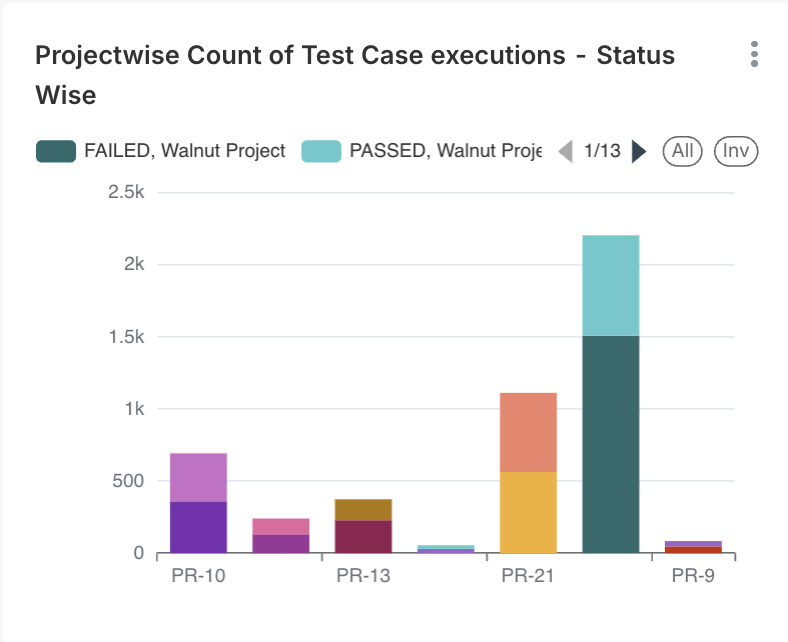
### Project-wise Count of Test Case Executions – Status Wise
#### Description
Displays **execution status distribution across projects**.
#### Axis Details
* **X-Axis:** Project Name
* **Y-Axis:** Count of Test Case Executions
#### Interpretation
High **Passed** counts indicate stable projects, while high **Failed** counts highlight project-level risk areas.
#### Business & Operational Value
* Enables project health comparison
* Helps prioritize stabilization efforts
***
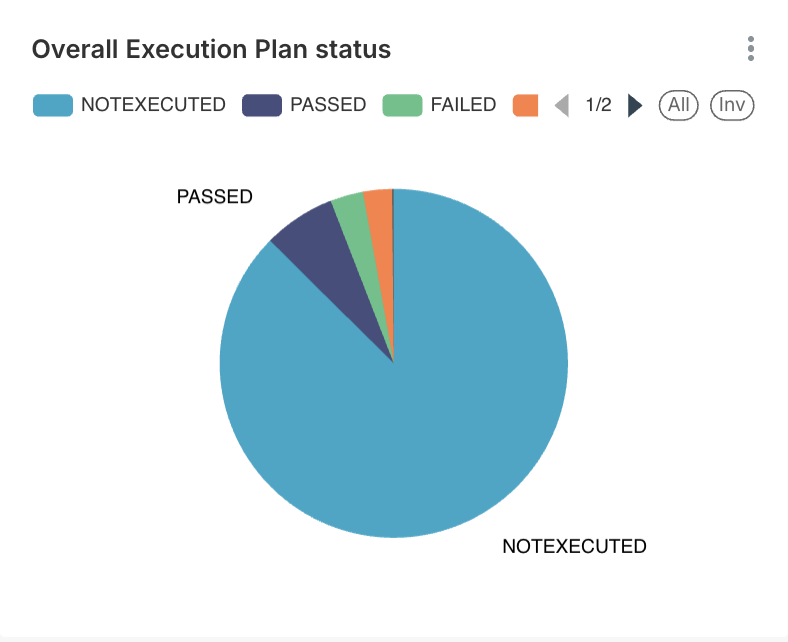
### Overall Execution Plan Status
#### Description
Provides a **high-level summary of the execution plan status**.
#### Status Categories
* Passed
* Failed
* Not Executed
* Inprogress
* Blocked
#### Interpretation
A large **Not Executed** portion indicates incomplete execution and potential delivery risk.
#### Business & Operational Value
* Quick execution health snapshot
* Useful for management and release reviews
***
### Key Takeaways & Best Practices
* Monitor **Not Executed** trends daily to avoid last-minute risks
* Correlate execution failures with defect trends for root cause analysis
* Ensure device and machine readiness before execution cycles
* Use user-wise reports for capacity planning and balancing
* Combine execution insights with **Defect and Requirement dashboards** for complete visibility
---
# Agent Instructions
This documentation is published with GitBook. GitBook is the documentation platform designed so that both humans and AI agents can read, navigate, and reason over technical content effectively. Learn more at gitbook.com.
## Querying This Documentation
If you need additional information that is not directly available in this page, you can query the documentation dynamically by asking a question.
Perform an HTTP GET request on the current page URL with the `ask` query parameter, and the optional `goal` query parameter:
```
GET https://docs.simplifyqa.ai/dashboard/test-execution-dashboard-guide.md?ask=&goal=
```
`ask` is the immediate question: it should be specific, self-contained, and written in natural language.
`goal` is optional and describes the broader end goal you are ultimately trying to accomplish on behalf of the user. GitBook uses it to tailor the answer towards what is most useful for that goal.
The response will contain a direct answer to the question and relevant excerpts and sources from the documentation.
Use this mechanism when the answer is not explicitly present in the current page, you need clarification or additional context, or you want to retrieve related documentation sections.