> For the complete documentation index, see [llms.txt](https://docs.simplifyqa.ai/llms.txt). Markdown versions of documentation pages are available by appending `.md` to page URLs; this page is available as [Markdown](https://docs.simplifyqa.ai/story-studio.md).
# Story Studio
**Story Studio** is SimplifyQA’s AI-powered workspace that enables teams to convert requirements into structured, execution-ready QA assets. By intelligently analyzing documents and inputs, Story Studio helps generate **Features, User Stories, and Test Cases**, while ensuring seamless integration with SimplifyQA’s built-in ALM modules.
It is designed to accelerate the QA lifecycle while maintaining accuracy, traceability, and user control.
### **Accessing Story Studio**
To access Story Studio:
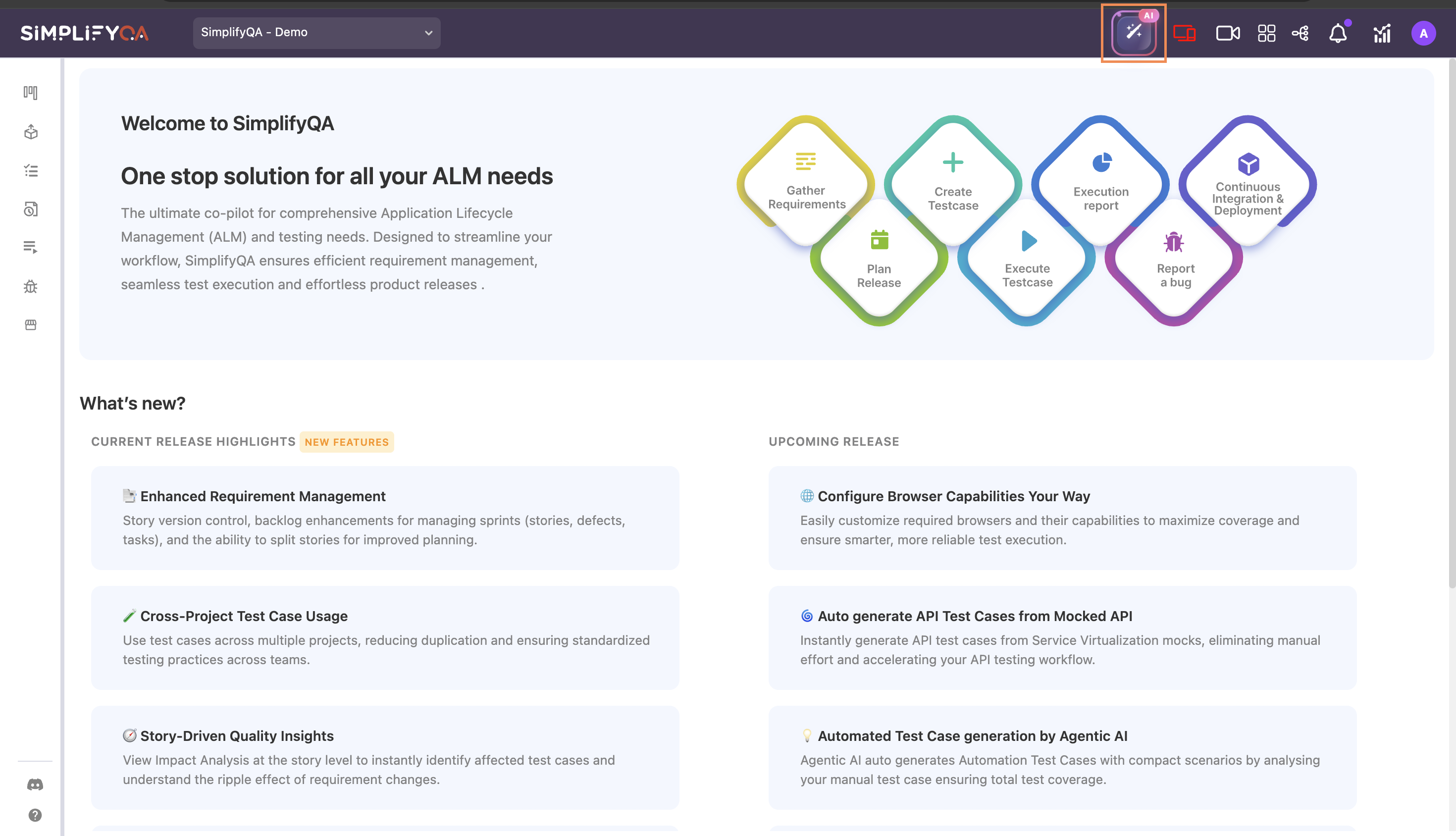
1. Log in to the **SimplifyQA** application
2. From the **header menu**, select Story Studio
The Story Studio workspace opens, allowing you to begin creating AI-powered QA assets.
### **Uploading or Attaching Requirements**
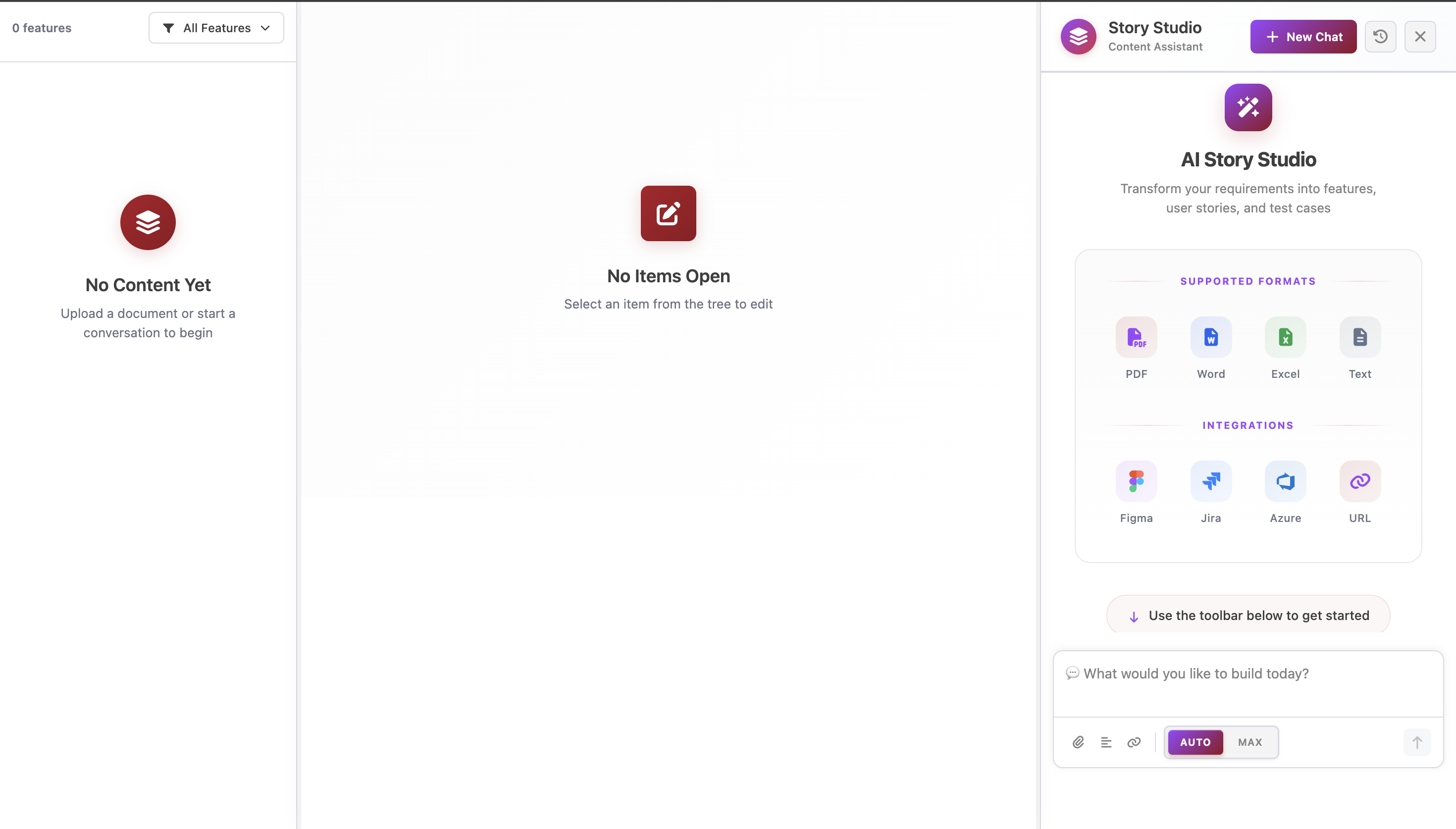
Users begin by uploading or attaching requirements to Story Studio. Supported input sources include:
* Business Requirement Documents (BRD)
* Functional and Product Requirement Documents (FRD / PRD)
* Figma design files
* JIRA tickets
* Requirement links
* Plain text or unstructured inputs
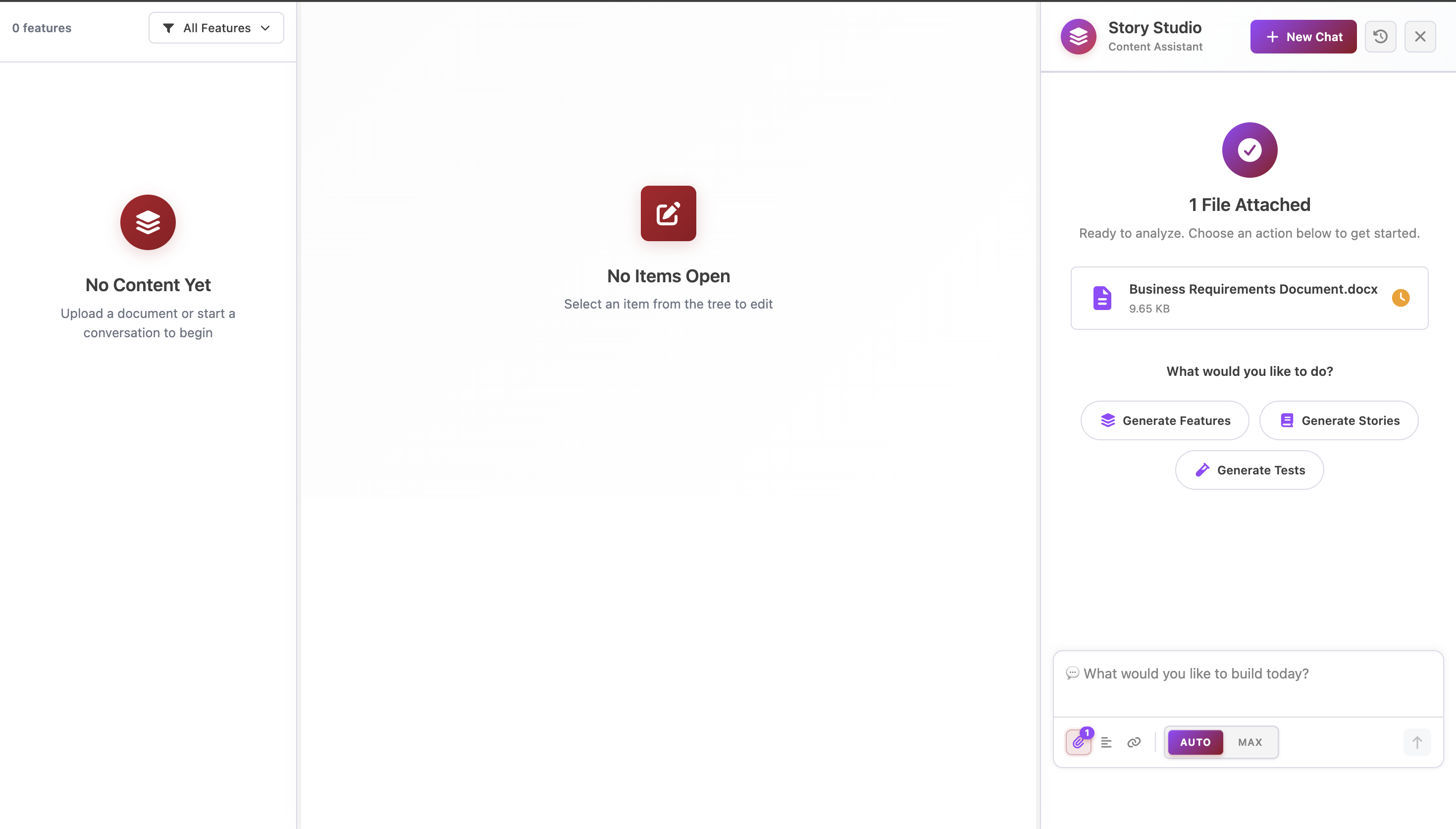
Once attached, Story Studio analyzes the content to understand the application’s functionality and testing scope.
### **Selecting the Generation Mode**
Before generating any assets, users must choose a generation mode. The selected mode applies across Features, User Stories, and Test Cases.
#### **Auto Mode**
Auto Mode generates concise and optimized outputs, making it suitable for quick requirement analysis and faster asset creation.
#### **Max Mode**
Max Mode performs deeper analysis and generates detailed outputs, including broader coverage and edge cases. This mode is recommended for complex or enterprise-level applications.
### **Choosing What to Generate**
After selecting the generation mode, users can choose the type of output to generate:
* **Features**
* **User Stories**
* **Test Cases**
While users can start at any level, generating Features first is recommended to ensure structured traceability across assets.
### **Feature Generation**
When Feature generation is selected, Story Studio:
* Analyzes the uploaded requirements
* Identifies and extracts core functionalities
* Structures them into Features
* Displays the generated Features in the left-hand panel
Users can review, select, edit, or rename Features as required. Selected Features serve as the foundation for User Story creation.
### **User Story Generation**
From the selected Features, users can generate User Stories directly within Story Studio.
* **Auto Mode** generates streamlined, well-defined User Stories
* **Max Mode** generates detailed User Stories with enhanced coverage and context
Generated User Stories are displayed in the workspace for review.
### **Refining User Stories Using AI Prompts**
Story Studio allows users to refine User Stories through both manual edits and AI-assisted prompts.
Users can:
* Rephrase User Stories
* Add or remove scenarios
* Modify acceptance criteria
* Adjust business logic
All updates are applied in real time, ensuring accuracy and alignment with requirements.
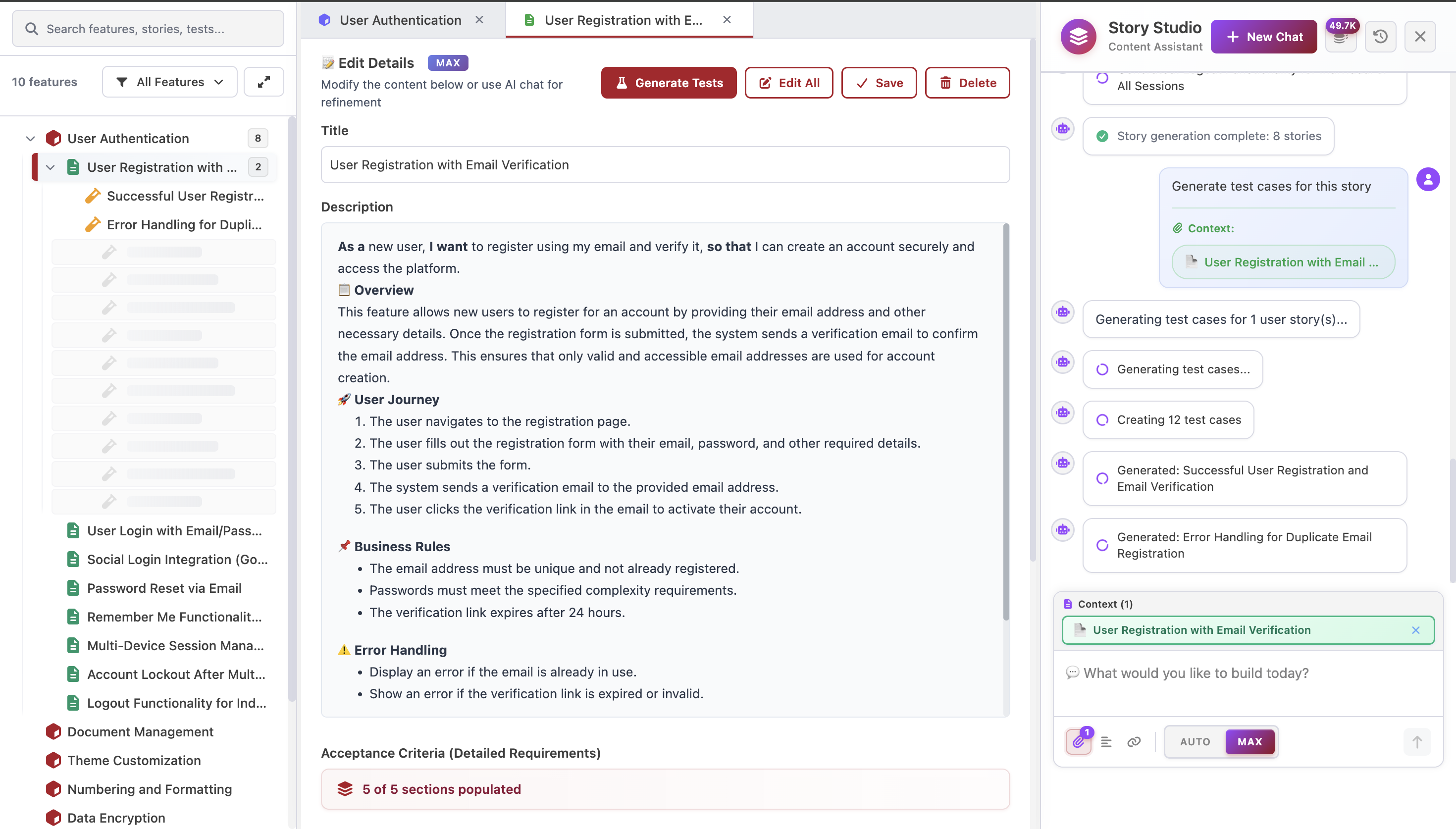
### **Test Case Generation**
Once User Stories are finalized, users can generate Test Cases directly from them.
* **Auto Mode** generates essential test cases focused on core functionality
* **Max Mode** generates detailed, end-to-end test cases covering positive, negative, and edge scenarios
Test Cases are structured, reusable, and ready for execution.
### **Refining Test Cases Using AI Prompts**
Test Cases can be further customized using AI prompts or manual edits.
Users can:
* Modify test steps
* Enhance validations
* Improve scenario coverage
* Align test cases with application behavior
This ensures test cases meet both functional and quality standards.
### **Saving Assets to ALM Modules**
After review and finalization, AI-generated assets can be saved directly into SimplifyQA’s ALM modules.
* **User Stories** can be saved to the **Requirement Management** module
* **Test Cases** can be saved to the **Test Management** module
This ensures centralized management, traceability, and seamless collaboration across teams.
### **Chat History**
Story Studio maintains a complete history of user interactions and generated outputs.
* Users can access previous conversations by clicking on the **History** option
* Chat history allows users to revisit, review, and continue previous work without regenerating content
### **Creating a New Chat**
Users can start a new interaction at any time by selecting **New Chat**.
This is useful when working on new requirements, creating separate workflows, or keeping conversations independent.
### **Key Benefits of Story Studio**
* Accelerates conversion of requirements into QA assets
* Supports both quick and detailed generation through Auto and Max modes
* Maintains traceability across Features, User Stories, and Test Cases
* Integrates seamlessly with SimplifyQA’s built-in ALM modules
* Provides AI-driven assistance while retaining full user control
---
# Agent Instructions
This documentation is published with GitBook. GitBook is the documentation platform designed so that both humans and AI agents can read, navigate, and reason over technical content effectively. Learn more at gitbook.com.
## Querying This Documentation
If you need additional information that is not directly available in this page, you can query the documentation dynamically by asking a question.
Perform an HTTP GET request on the current page URL with the `ask` query parameter, and the optional `goal` query parameter:
```
GET https://docs.simplifyqa.ai/story-studio.md?ask=&goal=
```
`ask` is the immediate question: it should be specific, self-contained, and written in natural language.
`goal` is optional and describes the broader end goal you are ultimately trying to accomplish on behalf of the user. GitBook uses it to tailor the answer towards what is most useful for that goal.
The response will contain a direct answer to the question and relevant excerpts and sources from the documentation.
Use this mechanism when the answer is not explicitly present in the current page, you need clarification or additional context, or you want to retrieve related documentation sections.